CSXCAD
Initialization
An openEMS simulation always starts by creating a 3D model of the structure
using the CSXCAD library. All created entities for the simulation are stored
in the csx data structure (or Python object), which must be initialized
first. It’s done by either the InitCSX() method in Matlab/Octave, or
the ContinuousStructure class in Python:
csx = InitCSX();
import CSXCAD
csx = CSXCAD.ContinuousStructure()
Once initialized, 3D models can be created by the functions provided by CSXCAD.
In Matlab/Octave, nearly all of them accept an old instance of the csx data
structure, and returns a modified new one. The Python binding has a more modern
coding style in comparison, which achieves this via class methods rather than
functions:
% create a property (e.g. AddMetal, AddMaterial)
csx = AddExample(csx, arg1, arg2, arg3, ...)
# create a property (e.g. AddMetal, AddMaterial)
prop = csx.AddExample(arg1, arg2, arg3, ...)
These CSXCAD functions can be classified into two types, primitives and properties. They define shapes and their material properties respectively.
Primitives are the building blocks to create 1D, 2D, 3D shapes at given coordinates, so that one can create a simple object at a specific position, such as a Curve, a Polygon, a Box, or a Sphere.
Properties are always created before Primitives to give physical meanings to the created objects. A property can represent an ideal or imperfect material such as a metal, a thin conducting sheet, a dielectric material, a magnetic material, a lumped circuit component (resistor, capacitor, inductor), etc. Non-physical simulation entities are also properties, such as excitation sources, probes, and field dump boxes.
More complex structures can be created by combining various primitives. If the same position contains overlapping primitives, the primitive with the highest priority takes effect. For example, a metal sheet with cylindrical holes can be achieved by creating a metal (or thin conducting sheet) property, and deriving a box primitive without holes. Then, create another material property with \(\epsilon_r = \mu_r = 1.0\), and deriving several cylinder primitives with higher priorities.
Tip
Primitives tell the simulation where objects are, properties tell the simulation what objects do, priorities tell the simulation which object “wins.”
See Properties and Primitives for details.
Coordinate Systems
By default, a Cartesian coordinate system is used, which is suitable for most simulations. If the simulated structure is predominantly circular, the Cartesian mesh may have a difficult time aligning itself with an object’s shape. Hence openEMS provides the alternative cylindrical coordinate system to minimize staircasing errors:
csx = InitCSX('CoordSystem', '1');
import CSXCAD
csx = CSXCAD.ContinuousStructure(CoordSystem=1)
Note
This mainly affects mesh coordinates of the simulation box, not the coordinates of 3D model themselves. When creating 3D models, one can choose both Cartesian and Cylindrical coordinates independently from the mesh (by default, models do follow the mesh coordinate system, but it can always be overridden).
Saving
Once modeled, the CSXCAD data structure is usually saved to disk as an
.xml file. It can be inspected by the AppCSXCAD 3D viewer
for debugging:
AppCSXCAD simulation.xml
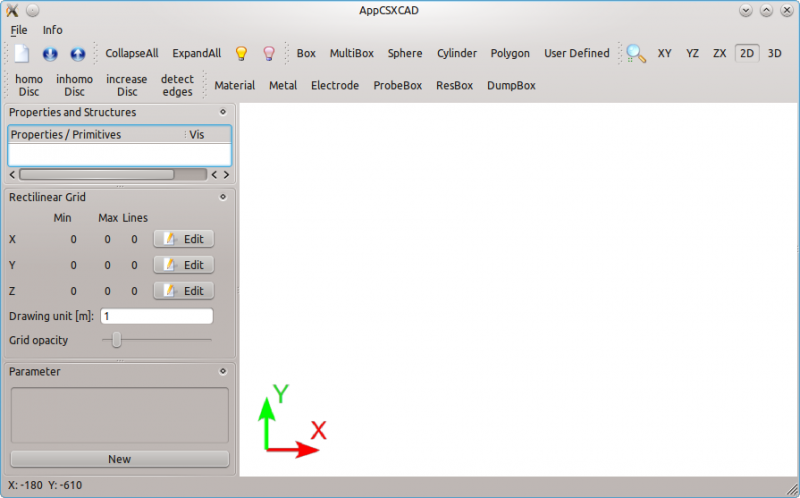
AppCSXCAD, CSXCAD’s official 3D model viewer and editor.
Two forms of savings are possible: A model-only saving via CSXCAD, or a model-and-simulation save via openEMS.
Model-Only Save
To save only the geometry as a self-contained .xml file, use the
struct_2_xml() function in Matlab/Octave, or the
CSXCAD.ContinuousStructure.Write2XML() method in Python:
% create and edit CSX here
csx = InitCSX();

path = '/tmp';
filename = 'simulation.xml';

% create an empty data structure "output", and assign "CSX"
% to its CSXCAD attribute.
output.CSXCAD = csx;
struct_2_xml(filename, output, 'openEMS');
import pathlib
import CSXCAD

# create and edit CSX here
csx = CSXCAD.ContinuousStructure()

simdir = pathlib.Path("./")
xmlname = pathlib.Path("simulation.xml")

# concat two paths
xmlpath = simdir / xmlname

csx.Write2XML(str(xmlpath))  # convert Path object to string
One can view this .xml file via AppCSXCAD, but this
file cannot be used as input to the openEMS executable
in replay the simulation.
Note
In the previous versions of openEMS, this was the only available saving method in Python.
Model-and-Simulation Save
To save both the geometry and simulator settings as a self-contained
.xml file, the WriteOpenEMS() function in Matlab/Octave,
or the openEMS.openEMS.Write2XML() method in Python.
This file contains both the geometry and simulation data, the former is owned by CSXCAD, and latter is owned by openEMS. Hence, both inputs are required:
# create and edit CSX and simulation parameters here
csx = InitCSX();
fdtd = InitFDTD();

path = '/tmp';
filename = 'simulation.xml';

% write openEMS compatible xml-file
WriteOpenEMS([path '/' filename], fdtd, csx);
import pathlib
import CSXCAD
import openEMS

# create and edit CSX here
csx = CSXCAD.ContinuousStructure()
openems = openEMS.openEMS()

# assign the CSXCAD structure to the simulator
openems.SetCSX(csx)

simdir = pathlib.Path("./")
xmlname = pathlib.Path("simulation.xml")

# concat two paths
xmlpath = simdir / xmlname

# write openEMS compatible xml-file
openems.Write2XML(str(xmlpath))  # convert Path object to string
Models and Simulations Reuse
It’s possible to serialize a CSXCAD model or a full openEMS simulation
to .xml files on disk. The simulations can then be replayed without
accessing to the original scripts.
The development of the Matlab/Octave and Python bindings took different paths, as a result, they behave differently in terms of reusing models and simulations.
Matlab/Octave
The Matlab/Octave binding was written as a pure “XML generator frontend”
to CSXCAD, and the openEMS executable was used as an “executable backend”.
All Matlab/Octave operations (such as geometries and simulation
settings) are only wrapper to the underlying .xml file writer. Once
generated, openEMS is launched and took over the simulation independently.
As a result, the same .xml file can be directly used to replay the same
simulation via the openEMS command-line in the future, even without the
source code. For example, it can be useful for constructing a simulation on
the local machine, but running simulation on a headless server:
openEMS simulation.xml
However, since the Matlab/Octave binding is only an .xml generator without
direct access to CSXCAD itself, the generated .xml file is “a one-way street”
that can’t be reloaded as a Matlab/Octave data structure after the fact.
Source code must be kept if the generated structure or simulation needs any
future modifications. Overall, the Matlab/Octave binding works like a static
website generator. One can generate web pages, but can’t edit the HTML files
back into the source format.
Python
In the Python binding, a decision was made to create a library-level binding to
both CSXCAD and openEMS. When geometries are created, rather than generating the
matching .xml code, it uses the actual funcions and internal data structures
within CSXCAD and openEMS.
This design decision leads to difference consequences.
Since one can start a simulation by invoking openEMS as
a library directly, there’s no need to call any external command. Saving
.xml files are optional. As a result, without explicitly serializing
these data structures in disk as .xml files, no Python simulations can
be externally viewed or replayed by default. On the other hand, if .xml
files are explicitly saved, it’s possible to save and reload models and
simulations thanks to the library-level access.
To save or load models, use ContinuousStructure’s
Write2XML() or
ReadFromXML().
To save or load both models and simulation parameters, use
openEMS’s own Write2XML() and
ReadFrom2XML().
In the past, Write2XML() and
ReadFromXML() was only implemented
in CSXCAD, not openEMS. Thus, no simulation parameters could saved or
reloaded, because they were not controlled by CSXCAD. To restart a
simulation from CSXCAD-only .xml file, one must manually reconstruct
a openEMS instance with external simulation parameters.
In the latest versions, one can save both CSXCAD and openEMS data structures
using the method described above. The saved .xml simulation file can
be replayed by openEMS independent of the script.
Note
Replaying Simulations. Sometimes it may be desirable to “replay” an existing simulation setup without access to the Matlab/Octave or Python source code. This is always possible in Matlab/Octave, but it’s only supported in Python if both the models and simulation parameters are saved.
Post-Processing
In all cases, post-processing simulation results always requires source
code in order to parse and interpret the generated files on disk.
The program openEMS itself is only a field solver engine. For analysis,
we rely on Matlab/Octave or Python routines.
Interfacing CSXCAD with Third-Party Apps
If you’re developing a non-Python third-party EDA tool based on openEMS,
it’s recommended to generate a simulation .xml and to call openEMS as
an executable. Both the .xml file format and the CSXCAD library APIs are
public by design, so it’s acceptable to either generate the .xml
yourself, or invoke the CSXCAD library to do that.
On the other hand, although openEMS is also available as a shared library, but its C++ APIs are presently intended only for use by the Python binding, not public use. Breaking changes may occur at any time. Invoke openEMS as a C++ library only if you plan to follow upstream development closely.
As a result, the recommendation is to follow a hybrid of the approaches used by Matlab/Octave and Python bindings.
Import & Export
Several Matlab/Octave and Python functions are provided to import or export the CSXCAD model to other format.
Matlab/Octave
In Matlab/Octave, the following functions are available:
-
Especially useful for importing a 3rd-party 3D model (such as a connector).
export_gerber(),export_excellon():CAM file outputs for fabrication. Useful for automated generation of planar circuits.
-
For comparing simulation results with proprietary, commercial tools.
-
For rendering fancy ray-traced 3D images.
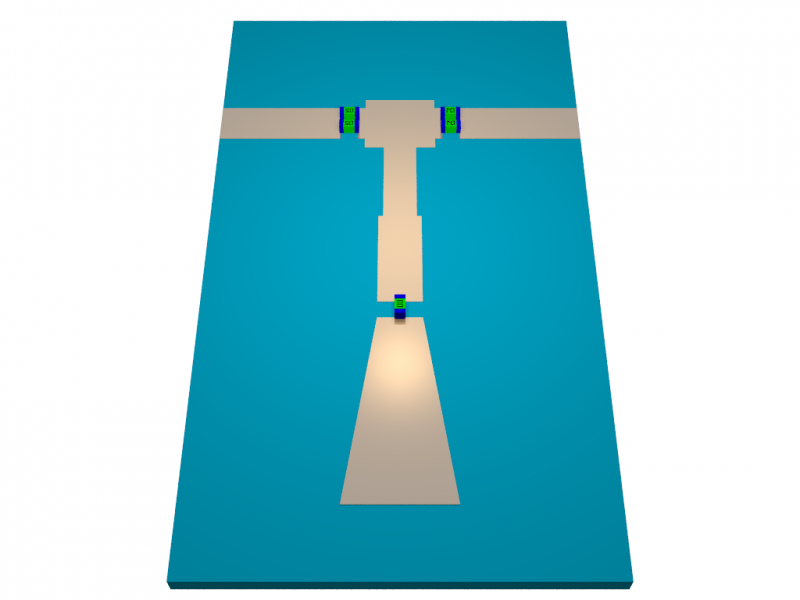
Rendering of a 2.4 GHz planar circuit by raytracing.
Python
Unfortunately, with the exception to STL, none of the functions
above have been implemented in Python.
To import an external STL model, one uses an alternative method
AddPolyhedronReader()
from CSProperties:
import CSXCAD

csx = CSXCAD.ContinuousStructure()

# create a property (e.g. AddMetal, AddMaterial)
material = csx.AddExample(arg1, arg2, arg3, ...)

# create a special file-defined primitive
enclosure = enclosure.AddPolyhedronReader('enclosure.stl')
enclosure.ReadFile()

# can be manipulated like any other primitives
enclosure.AddTransform( ... )
Alternatively, one can use Matlab/Octave’s ImportPLY() to
import a PTY model, export the result to .xml, and load the
model in Python via ReadFromXML().
For exporting, AppCSXCAD itself can generate POV-Ray, STL, X3D, Polydata-VTK, and PNG file formats.
Note
Importing is easy, meshing is hard. Importing an external model is considered an advanced feature, beginners are not recommended to try them before familiarizing themselves with the CSXCAD/openEMS workflow first via basic simulations. Creating a meshing-friendly model (see Mesh) is often difficult, so a model and a mesh is usually co-developed. If a model comes from another source, yet the user is not already familiar with the meshing process and its pitfalls, confusing problems may arise.
Modeling via a GUI?
In principle, it’s feasible to make or tweak a 3D model using the
AppCSXCAD GUI. Geometries and mesh lines can be added
entirely by the GUI, which are then saved and read into Python later
via ReadFromXML() with additional
initialization and tweaks for simulations. Likewise, saving and
reloading makes it possible to tune a script-generated 3D model in
the AppCSXCAD GUI.
This technique circumvents programmatic modeling (as decribed in Primitives) entirely. However, it has not been put in use by anyone to our best knowledge, possibly because it’s not a coherent method. On the other hand, there are numerious attempts over the years to create models using GUI-based or high-level tools, to varying degrees of success.
The first general idea is to create the structure first in a
general-purpose CAD like FreeCAD. This can then be exported as
a 3D model and be loaded into CSXCAD via ImportSTL() for
simulation. By editing the CSXCAD object further, ports and
probes can also be modeled as a GUI.
The second general idea, specific to planar circuits and circuit board simulations, is to first create the circuit board using an EDA tool such as gEDA, pcb-rnd, or KiCad. The circuit layout can then be exported as a 2D vector image format, such as HyperLynx, Gerber, SVG or PDF. The polygons in these images are then extracted and imported as CSXCAD polygons.
The third general idea, is to create a high-level programming library for defining high-level objects such as traces, vias, circuit board layers, so that they can be created one object at a time, rather than one polygon at a time.
A common subgoal of all tools is an automatic meshing algorithm, which turned out to be far from straightforward. CSXCAD models are usually designed as highly simplified test cases to check specific design parameters. In manual modeling, geometries and meshing are co-designed to simplify each other. However, automatic meshing algorithms deal with arbitrary models imported by users, a more difficult problem.
Important
Third-Party Tools. These tools are developed by third parties, and not officially supported by the openEMS project. Most of them are highly experimental and incomplete. They’re described here for completeness. The project forum is also open to the discussions of their uses.
Importing is easy, simulation is hard. These tools should be considered advanced applications. Beginners are not recommended to try them before familiarizing themselves with the CSXCAD/openEMS workflow first via basic simulations, as described in first_lessons. Trying to import a circuit board without understanding the concept of ports, boundary conditions or meshing rules leads to failures, especially when most of these tools are highly experimental and incomplete.
Don’t work in isolation. So far there are already 7 different tools that attempt to automate modeling of circuit boards and 3D objects for openEMS. Instead of creating another one from scratch, it’s probably a good idea to have a discussion with the authors of these existing tools.
Examples of these tools include:
OpenEMSH, developed by Thomas Lepoix.
The next-generation automatic mesher for openEMS simulations, with funding from NLnet. It aims to overcome the difficulties encountered by all previous projects, but it’s still in the early-development stage.
Qucs-RFlayout, developed by Thomas Lepoix.
Convert planar microwave circuit schematics created in the Qucs RF circuit simulator to KiCad layouts and openEMS models.
FreeCAD-OpenEMS-Export, developed by Lubomir Jagos.
FreeCAD-based model and port edits, with CSXCAD export.
IntuitionRF, developed by Juleinn.
It allows one to mesh structures interactively via Blender.
pcb2csx, developed by Evan Foss.
It’s a plugin to the EDA tool pcb-rnd, allowing one to export an existing circuit board layout to CSXCAD.
http://repo.hu/cgi-bin/pool.cgi?project=pcb-rnd&cmd=show&node=s_param
Tutorial: Direct Path to openEMS for S-parameters
gerber2ems, developed by Antmicro.
It allows one to export an existing PCB layout as a Gerber file, which can then be converted and imported as a CSXCAD model.
pcbmodelgen, developed by jcyrax.
It converts a KiCad layout file into the CSXCAD model, also with experimental auto-meshing support.
pyems, developed by Matt Huszagh.
It’s a high-level Python interface to openEMS, which allows the programmatic creation of high-level structures such as circuit boards, traces, vias, PCB layers. It has also an experimental auto-mesh generation algorithm.
hyp2mat, developed by Koen De Vleeschauwer and distributed officially as part of openEMS.
It converts a HyperLynx layout file (can be generated by PCB EDA tools, including EAGLE or KiCad 6). The geometries are extracted to generate an Octave script with commands to create the CSXCAD model.
In principle, it can be used with Python as well, by exporting the model to XML in Octave via
WriteOpenEMS(), and importing the model viaReadFromXML(). But no one has tested it.Currently it’s retired and no longer maintained.
Developer Notes
The old project wiki also described this following idea to convert circuit board layouts from Gerber, PDF, DXF, or SVG into CSXCAD models. This idea may be of interest to developers working on automated CSXCAD model generation.
Note
PCB layers in Gerber files can be converted to PDF by means of gerber2pdf which can be found on Sourceforge (editor’s note: native PDF, SVG and DXF exports are available in many EDA packages). The PDF can be imported into Inkscape just as it is the case for DXF files. Within Inkscape, the usually closed paths can be modified (either manually or with filters) such that they result in a suitable list of polygon nodes for openEMS.
Sometimes these polygons or curves have too many nodes. The number of nodes can be reduced with the Inkscape function “Path” > “Simplify”. The amount of reduction is controlled by the parameter “Simplification Threshold” which can be found under “Preferences” > “Behavior”. These paths are still Bézier curves which must be converted into polygons. This is achieved with “Extensions” > “Modify Path” > “Flatten Béziers”. The parameter in this dialog also controls the number of resulting points.
When all nodes are as required, the paths can be exported as a HTML5 Canvas. The resulting file can then be processed with an ASCII Editor. The numbers after the moveTo and lineTo statements are the polygon nodes X- and Y- coordinates respectively. However, they still must be transformed ba a liner transform given in the transform statement. The first four numbers a matrix by which the node coordinates have to be multiplied and the remaining two numbers are a vector which has to be added.
The result will be the node coordinates in HTML pixels with X counting from left to right and Y counting from top to bottom, which does not conform to the coordinate system of the Inkscape canvas.
In order to have the same axes as in Inkscape (X left to right and Y bottom to top), the fourth an sixth number have to be multiplied by -1 and the image height has to be added to the sixth number. Now the coordinates are in the usual coordinate system but still in HTML5 pixels. The ratio of pixels to mm or other units of length can finally be found under the document properties in Inkscape. This factor can be applied in Octave/Matlab. This finally gives polygons which can be processed by openEMS.